
Overview
Using Google to log in to When I Work allows you to access your account with your Google account instead of logging in with an email address and password.
Some workplaces may require using this option as a sign-in method. Check with your employer if you think this might be the case.
Before you begin
- If you don’t already have a When I Work account, register with your workplace.
- If your When I Work account does not use your Google email address, update your profile to use your Google email address.
Log in with Google on a Computer
- From your computer, use a supported web browser to sign in to When I Work on the web.
- Click Google icon
Log in with Google.
 A message appears prompting you to choose which Google account you’d like to use to sign in to When I Work.
 - Select your Google account. If you haven’t already allowed When I Work access to use your Google account to sign in, click Allow.

Log in with Google on an Android
- From your Android, open the When I Work app and tap Log In.
- On the login screen, tap Google icon
Sign in with Google button at the bottom of the app.
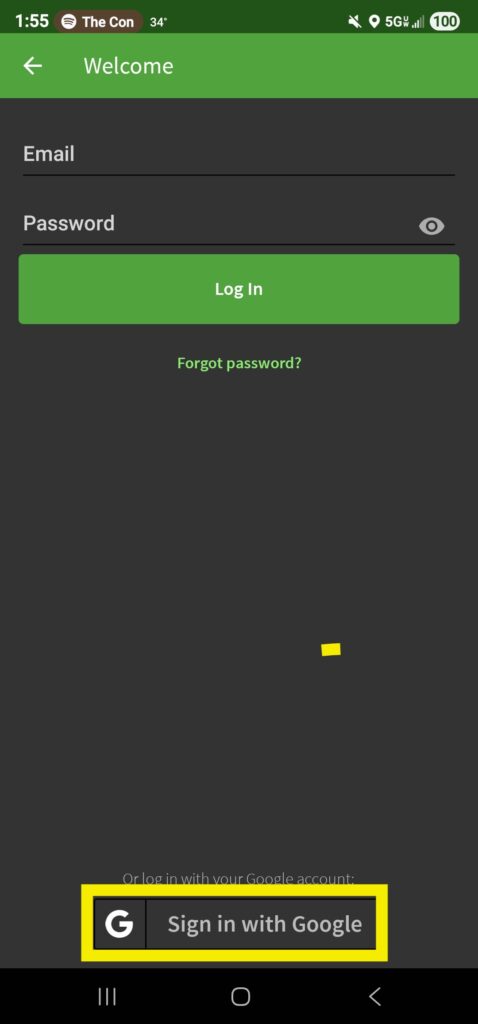
- Select your Google account. You may be prompted to allow the When I Work app access to your Google account.
Log in with Google on an iOS device
- From your iPhone or iPad, open the When I Work app and tap Log In.
- On the login screen, tap Google icon
Sign in with Google button just below the Sign in with Apple option.
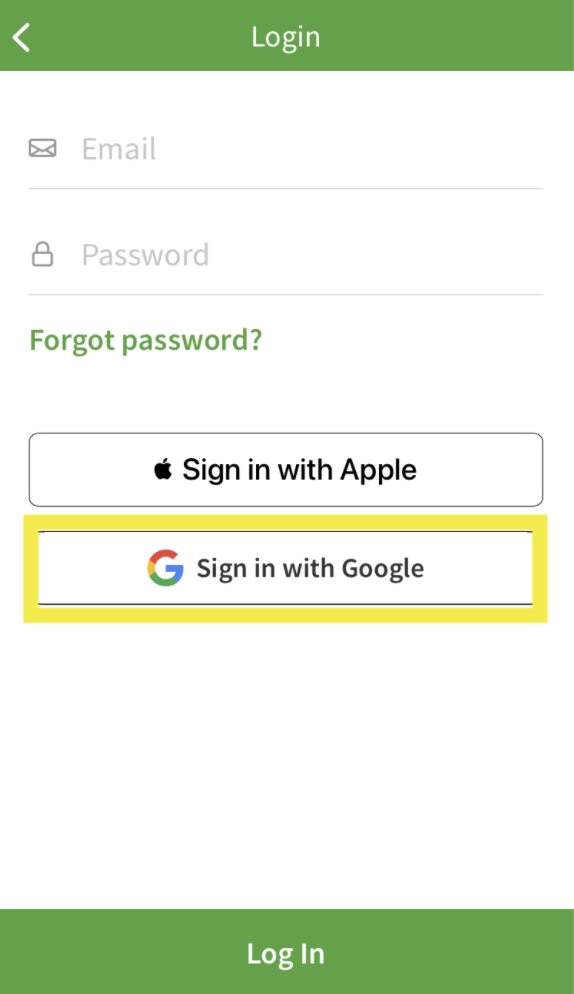
- Select your Google account. You may be prompted to allow the When I Work app access to your Google account.
Disconnect your Google account from your When I Work account
If you no longer want to use Google to log into When I Work, follow these instructions on how to remove a connected app from within your Google account. Once it’s been disconnected, log in with your email address and password.