
Overview
You can view your schedule from a computer or the mobile applications on Android and iOS devices.
Viewing your schedule often ensures you show up for the rights shifts at the right time.
Considerations
Depending on how your workplace’s settings are configured some features might not be available, including:
- Swapping, dropping, and releasing shifts
- Splitting shifts
- Taking OpenShifts
- Seeing who’s working with you
- Setting your availability
- Requesting time off
Computer
On the computer, you can access your personal schedule on the My Schedule page. The My Schedule page allows you to see your schedule, confirm your shifts, pick up OpenShifts, and provides some quick access to other features in the When I Work web app.
View your schedule
To view your schedule:
Hover over Schedule, then select My Schedule.
Hover over your name, then select My Schedule.
NOTE: Users with employee level access are shown My Schedule upon login.
The My Schedule page displays your schedule two weeks at a time.
Click or above your schedule to switch between weeks.
Click Today to go back to the current week.
View shift details
Click on a shift to view its details. The shift displays its start and end time, position, location, job site (if applicable), and any notes if they’ve been added by your manager.
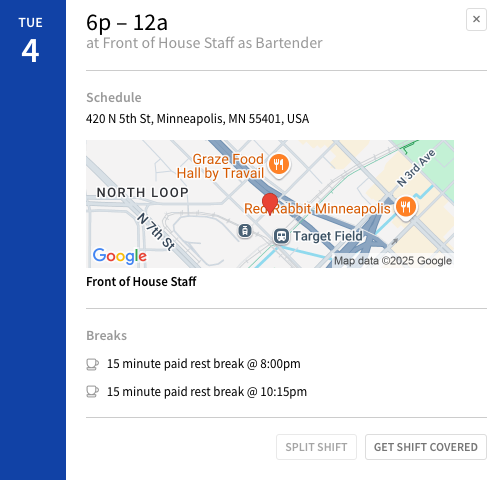
If you can’t work a particular shift, click Release Shift, Drop Shift, Swap Shift, or Split Shift.
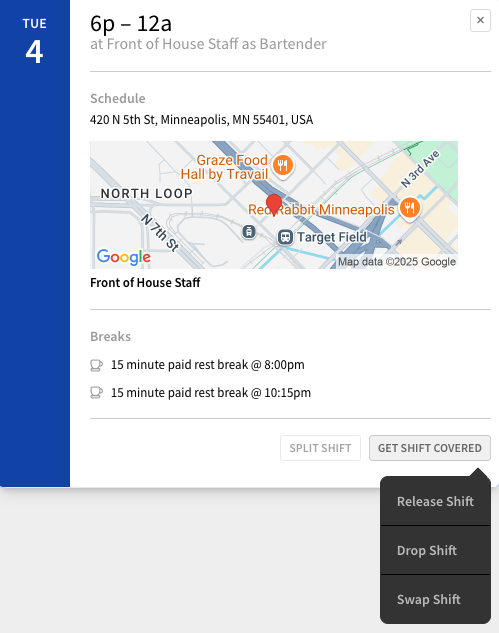
See Swapping and Dropping Shifts and Split Shifts for more information.
Confirm shifts
Confirming shifts lets managers know that you’ve seen your shifts after they are published. Shifts that have not yet been confirmed display in yellow. Click Confirm Shifts above the schedule to confirm shifts in the weeks you’re currently viewing.
For more information, check out Confirming Your Shifts.
Take an OpenShift
If your manager posts OpenShifts you’re qualified to take, you can pick them up from your My Schedule page under the Available Open Shifts section. Hover your pointer over an OpenShift you’d like to take, then click Take Shift. To view more details about the OpenShift, click Info.
Check out Taking OpenShifts for more information.
See who’s working with you
To view coworkers who are working the same day as you, click the Employee filter icon in the bottom-right corner of a day in the schedule.
Alternatively, clicking on Team Schedule at the top of the web app will show you the full schedule. 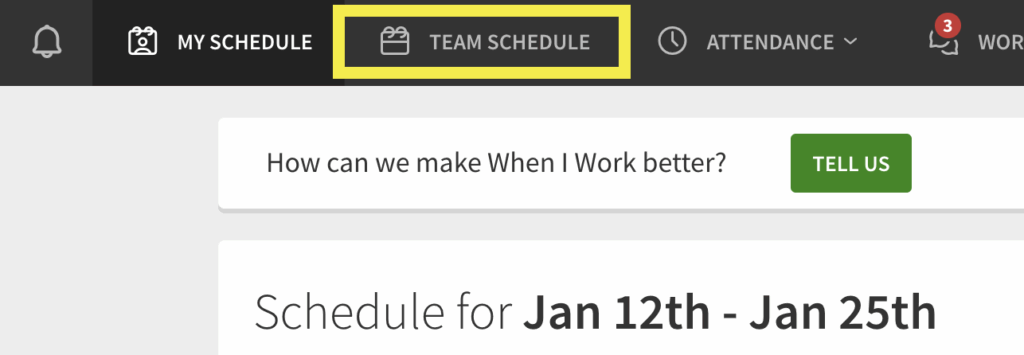
View your schedule outside of When I Work
If you’d like to access your schedule outside of When I Work, you can:
- Print your schedule by clicking the icon above the schedule.
- Sync your When I Work schedule to a calendar app by clicking Calendar Sync above the schedule. For more information, check out Syncing Your Schedule to a Calendar App.
Android
View your next shift
- From the When I Work Scheduling app, go to the Dashboard.
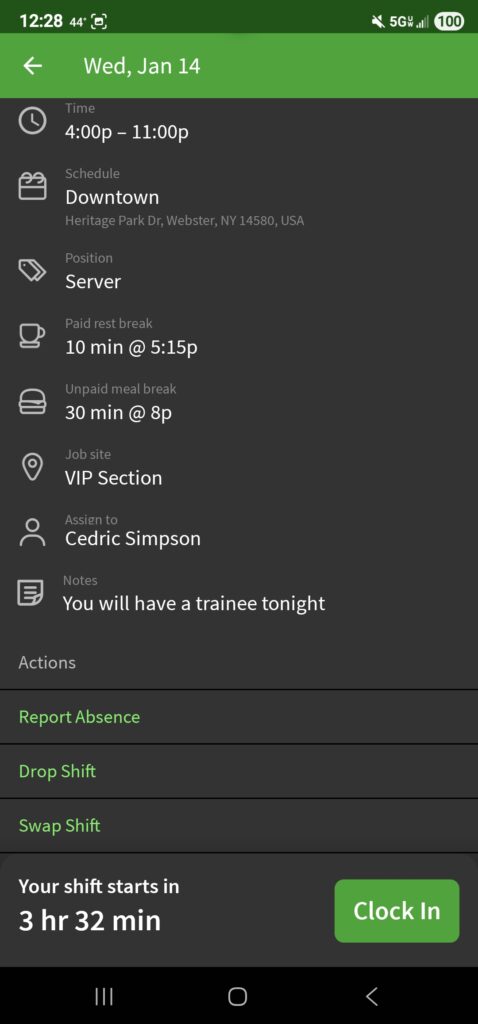
- Find the Next Shift card, which shows your next upcoming shift along with a few details and who you are also working with.
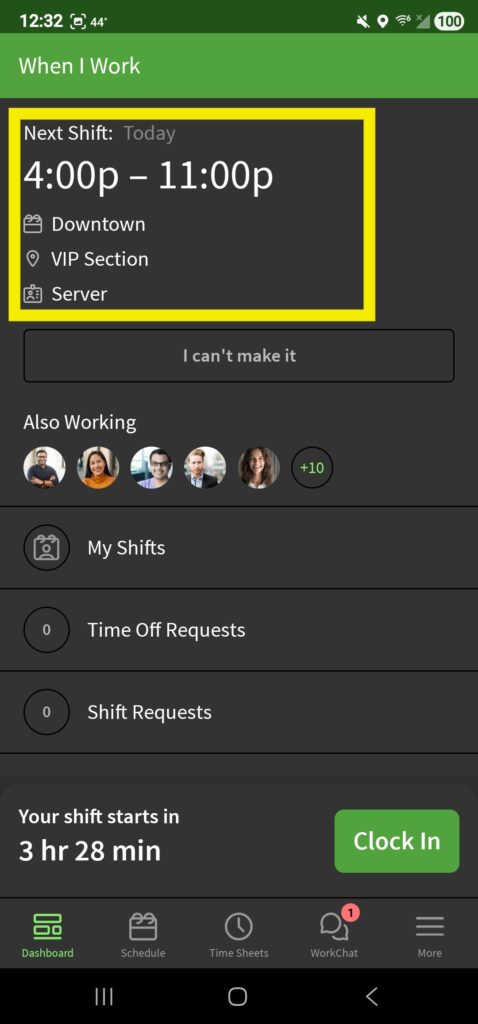
- Tap the Next Shift card to:
- View more in depth shift details such as notes and break times
- Report an absence
- Get your shift covered
View your upcoming shifts
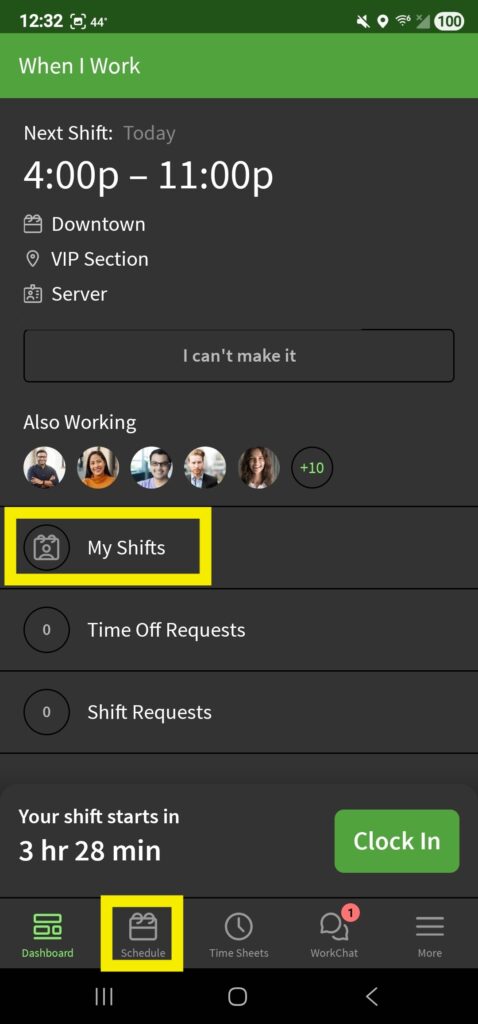
- From the When I Work Scheduling app, go to the Dashboard.
- Tap Schedule or My Shifts to view your upcoming shifts one week at a time.
Navigate the schedule
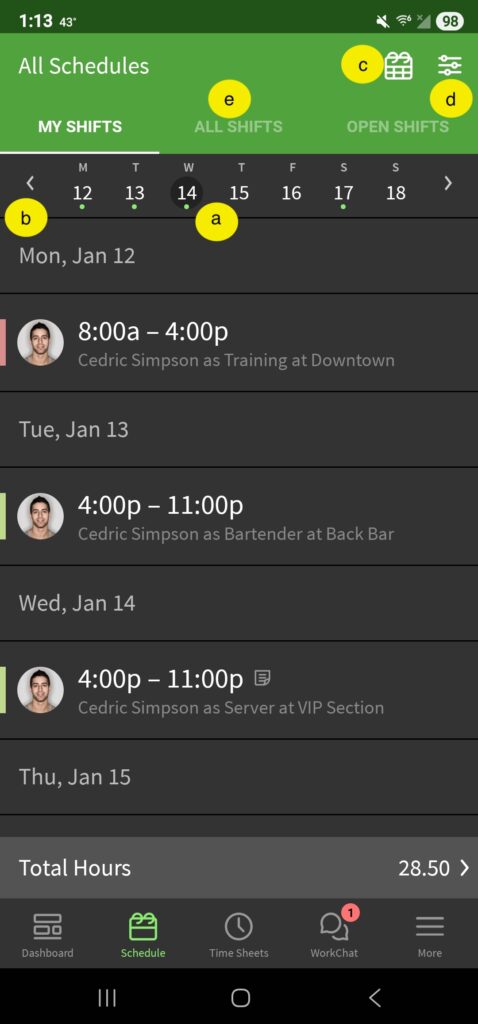
Tap a shift to view the details and complete other actions like reporting your absence or getting your shift covered.
| Callout |
| Description |
| a |
| Tap a date to scroll to that day. A green dot under the date indicates a shift on that day. |
| b |
|
| c |
Tap to expand the monthly calendar.
|
| d |
| Tap to filter shifts by schedule, position, or job site |
| e |
|
| Callout | Description |
| a | Tap a date to scroll to that day. A green dot under the date indicates a shift on that day. |
| b |
|
| c | Tap to expand the monthly calendar.
|
| d | Tap to filter shifts by schedule, position, or job site |
| e |
|
Refresh the schedule
You can check for schedule updates at any time by pulling down on the screen with your finger.
iOS Device
View your next shift
- From the When I Work Staff Scheduling app, go to the Dashboard.
- Find the Next Shift card, which shows your next upcoming shift along with a few details and who you are also working with.
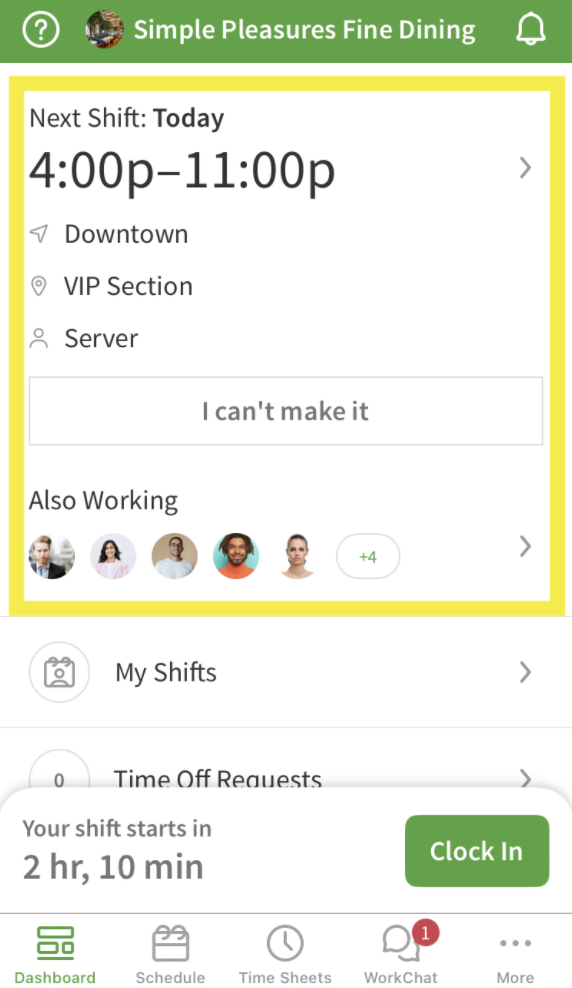
- Tap the Next Shift card to:
- View more in depth shift details such as notes and break times
- Report an absence
- Get your shift covered
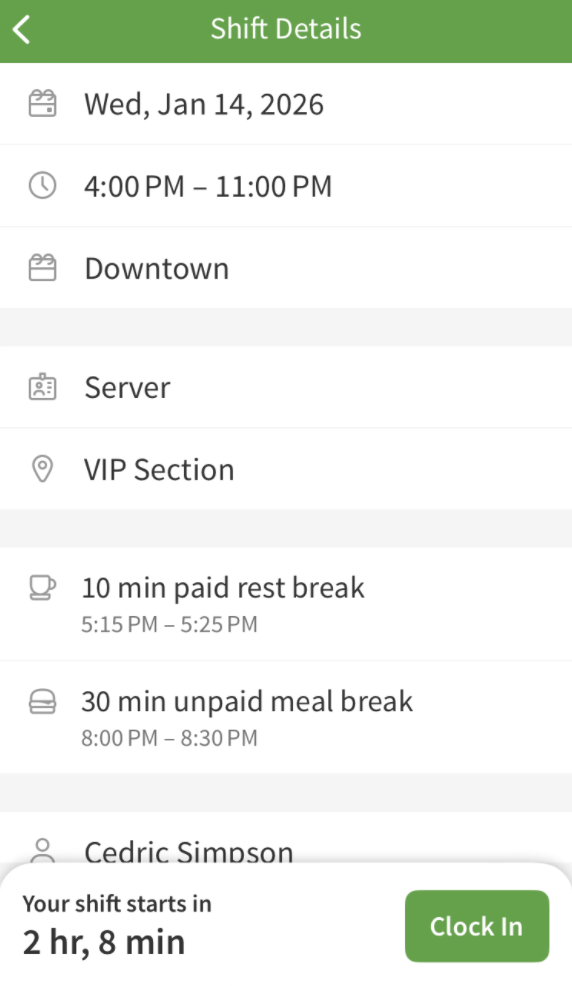
View your upcoming shifts
- From the When I Work Staff Scheduling app, go to the Dashboard.
- Tap My Shifts or Schedule to view you upcoming shifts one week at a time.
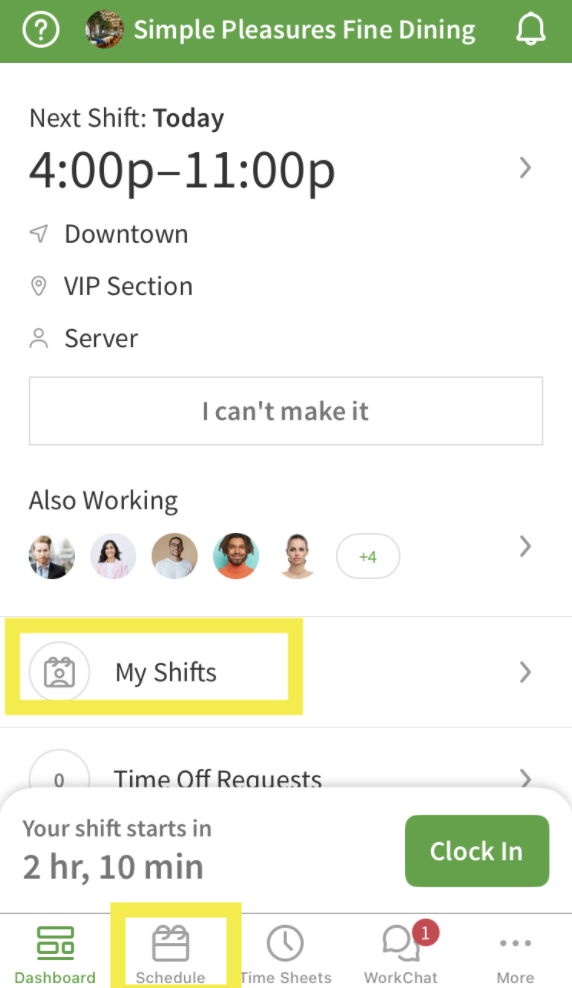
Navigate the schedule
Tap a shift to view the details and complete other actions like reporting your absence or getting your shift covered.
Switch weeks in this view by swiping left or right on the dates at the top. 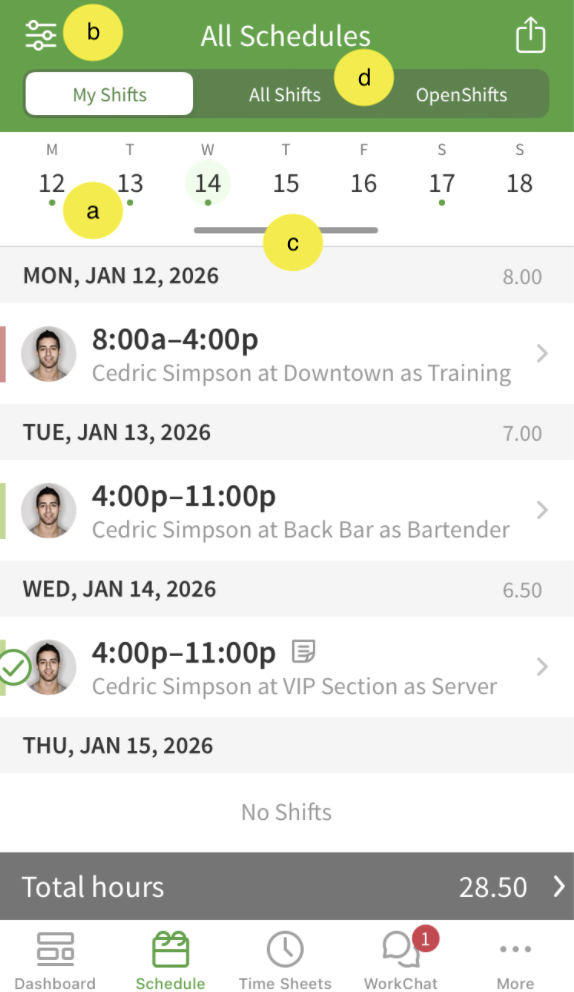
| Callout |
| Description |
| a |
| Tap a date to scroll to that day. A green dot under the date indicates a shift on that day. |
| b |
| Tap to filter shifts by schedule, position, or job site |
| c |
Tap the bar and drag it down to expand the monthly calendar.
|
| d |
|
| Callout | Description |
| a | Tap a date to scroll to that day. A green dot under the date indicates a shift on that day. |
| b | Tap to filter shifts by schedule, position, or job site |
| c | Tap the bar and drag it down to expand the monthly calendar.
|
| d |
|
Refresh the schedule
You can check for schedule updates at any time by pulling down on the screen with your finger.