
Overview
When users request to swap and drop shifts, you can use the When I Work web app to process the requests from your computer.
Considerations
- You must have supervisor, manager, or admin access privileges to process employee requests. If you’re a supervisor, you can only process requests for employees that belong to your schedules.
- Swap and drop requests do not require approval if Require Manager Review for Swaps and Drops is turned off in the Scheduling Settings.
- All requests have a status. More about these statuses at the bottom of this page.
How do I know when requests need my attention?
When a request needs your attention:
- We’ll send you an email and/or a mobile alert based on your alert preferences.
- The Notification Bell in the top-left corner of the When I Work web app shows a count badge. Click Notification Bell for more information.

Processing Requests on Computer
Hover over , then select Shift Requests.
- Find the shift request.
- Click Requests I Can Approve or All Requests.
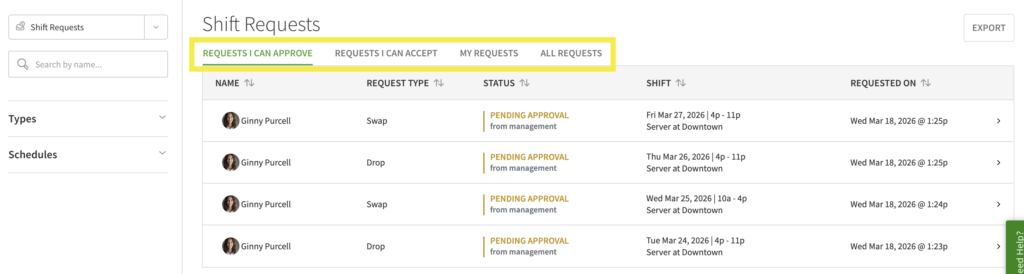
- Requests I Can Approve: Requests that are Pending Approval that you can act on, excluding your personal requests.
NOTE: This tab is not present if approval is not required in the Scheduling Settings. - Requests I Can Accept: Requests that you can accept from other users and work for them
- My Requests: Shows a list of requests you have submitted for yourself.
- All Requests: Your personal requests and requests from others all in one place.
- Requests I Can Approve: Requests that are Pending Approval that you can act on, excluding your personal requests.
- Search for a request or filter requests by Date Range, Status, Type and Schedule in the left sidebar.
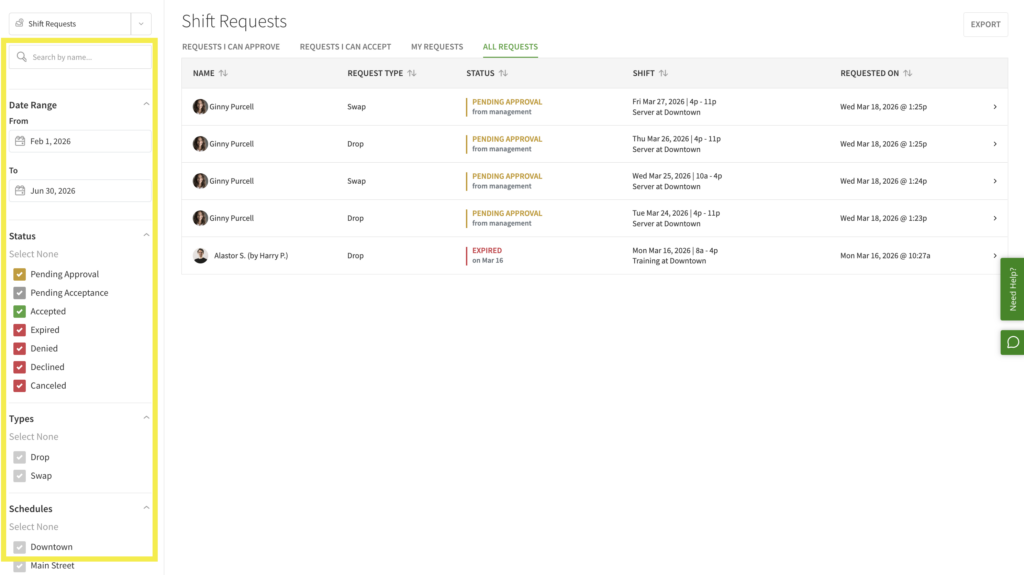
- Click Requests I Can Approve or All Requests.
- Click the request that you want to process.
Requests with status Pending Approval need your attention.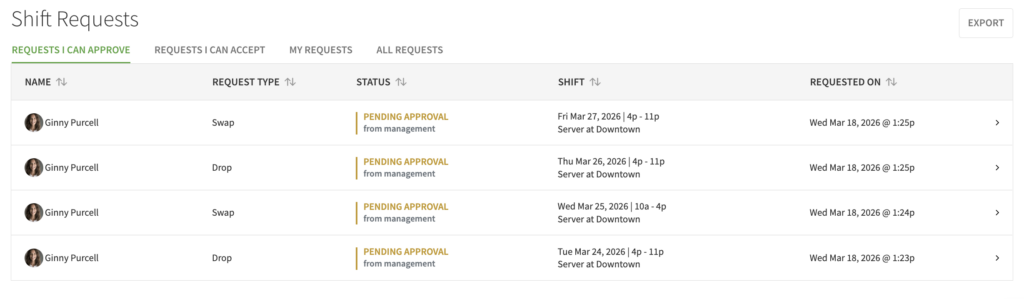
- (Optional) To send a message to the users involved, type a message under Conversation/Activity, then click Post.
- (Optional) If you would like to change who the swap or drop request is offered to, uncheck a shift (swap request) or user (drop request) to remove it from the request.
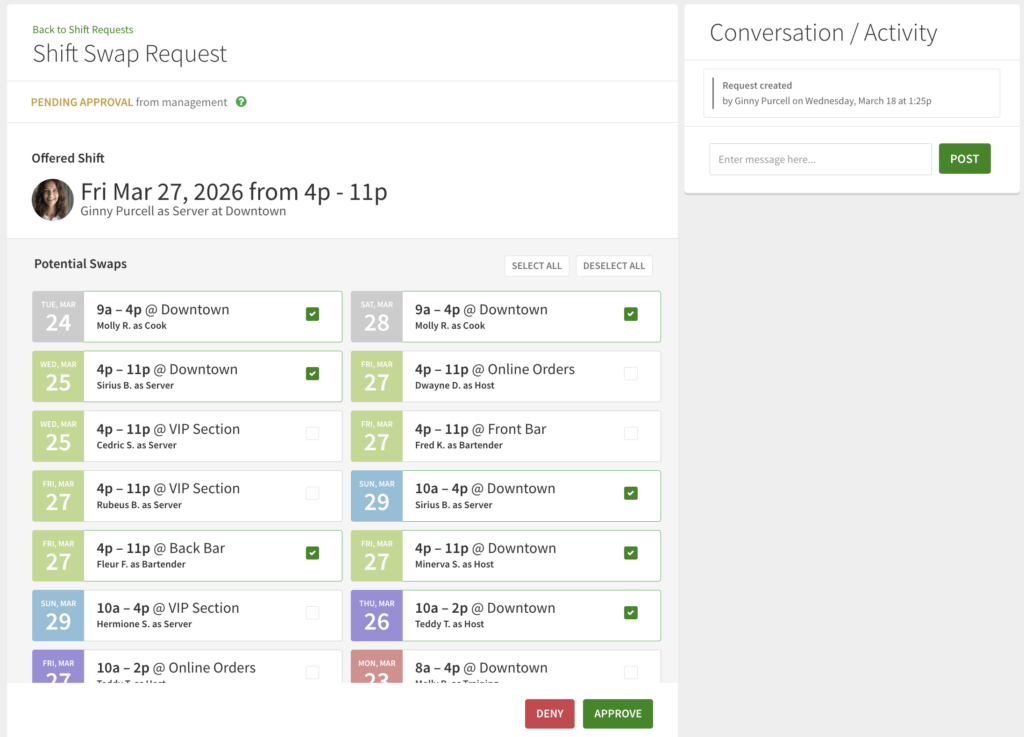
- Click Approve or Deny.
The users involved in the request are automatically notified. When the request is completed, you’ll receive a notification.
On the Mobile Applications
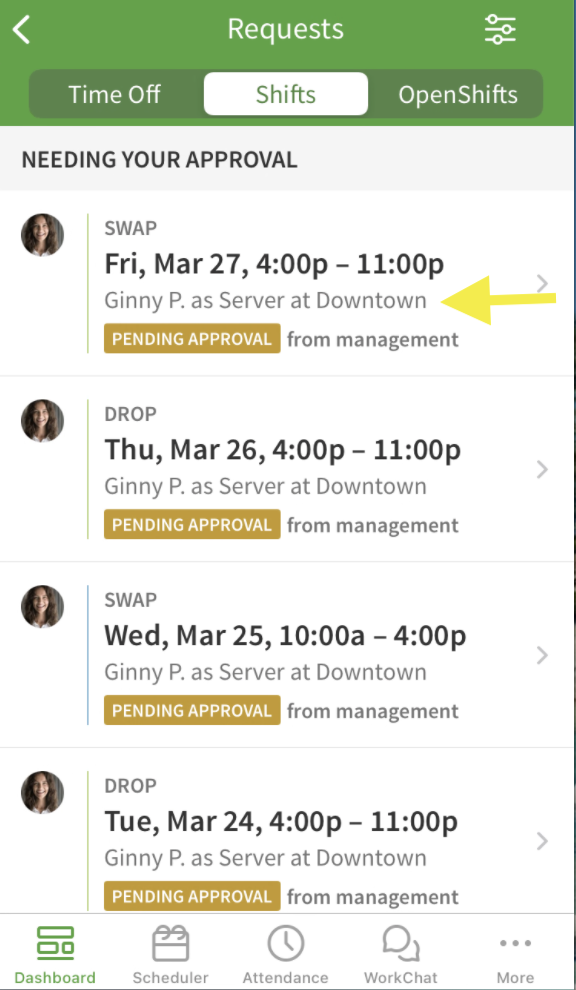
The steps are the same on both the Android and iOS applications, however the images below are from the iOS application.
- From the When I Work Staff Scheduling app, tap the Shift Requests dashboard card.
- Tap the Swap or Drop request you want to process.
- (Optional) If you would like to change who the swap or drop request is offered to, clear the checkbox next to the shift (swap request) or user (drop request).
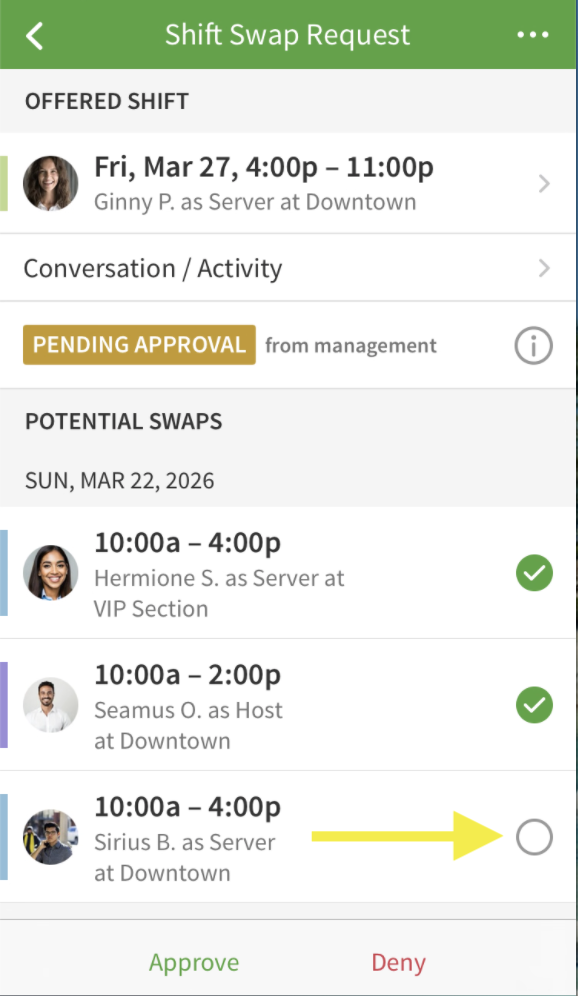
- Tap Approve to approve the request. Users on the request are automatically notified
- Denying a request will notify the user that submitted the request, but not the other users listed.
Shift request statuses
| Status | Pending Approval |
| Description | The request is waiting for approval from management.1 |
| Status | Pending Acceptance |
| Description | The request is waiting for a response from a coworker. |
| Status | Accepted |
| Description | A user has accepted the request. |
| Status | Canceled |
| Description | The manager or the user that created the request has canceled the request. A request can also be canceled automatically if the offered shift is changed by management. |
| Status | Declined |
| Description | All recipients of the request declined it. |
| Status | Expired |
| Description | The specific day regarding the request has passed; no one accepted or declined it in time. |
| Status | Denied |
| Description | The request was denied by management. |
| Status | Description |
| Pending Approval | The request is waiting for approval from management.1 |
| Pending Acceptance | The request is waiting for a response from a coworker. |
| Accepted | A user has accepted the request. |
| Canceled | The manager or the user that created the request has canceled the request. A request can also be canceled automatically if the offered shift is changed by management. |
| Declined | All recipients of the request declined it. |
| Expired | The specific day regarding the request has passed; no one accepted or declined it in time. |
| Denied | The request was denied by management. |
1 This status only appears when Require Manager Review for Swaps and Drops is enabled in the Scheduling Settings.