
Overview
Max hours Enforcement enables you to enforce the maximum amount of hours each user can work per week when picking up OpenShifts. You can use this feature to:
- Prevent users from taking too many OpenShifts or shift requests.
- Control your workforce labor costs.
Max hours enforcement uses the Max Hours/Week setting in the user’s details. If you already have max hours set for all of your users, enabling this feature enforces those hours.
Considerations
- Scheduling + Attendance accounts use already worked hours plus scheduled hours for today and future days to enforce the max hour totals.
- Scheduling only accounts use scheduled hours to enforce the max hour totals.
- Max Hours Enforcement does not take into account any overtime hours.
- Users can still be scheduled past their configured max hours.
- Users with max hours set to 0 are not impacted by Max Hours Enforcement.
- Users that might exceed their max hours do not see OpenShifts and are not included on shift swap/drop requests.
Enable Max Hours Enforcement
- As an Admin or Manager user, hover over in the top right corner, then select General Settings.
- Click the toggle next to Max Hours Enforcement.

- Click Save near the top right corner of the page.
Configure Max Hours/Week
If you are creating your workplace from scratch or adding new users, you can add Max Hours/Week to each user’s profile by using the steps below. If you have many existing users that you need to update, we recommend exporting your users to a spreadsheet, then importing them again with max hours added.
Hover over , then select Users.
- Click on the name of the user you would like to edit.
- Click Wages, then enter the amount of hours in the Max Hours / Week field.
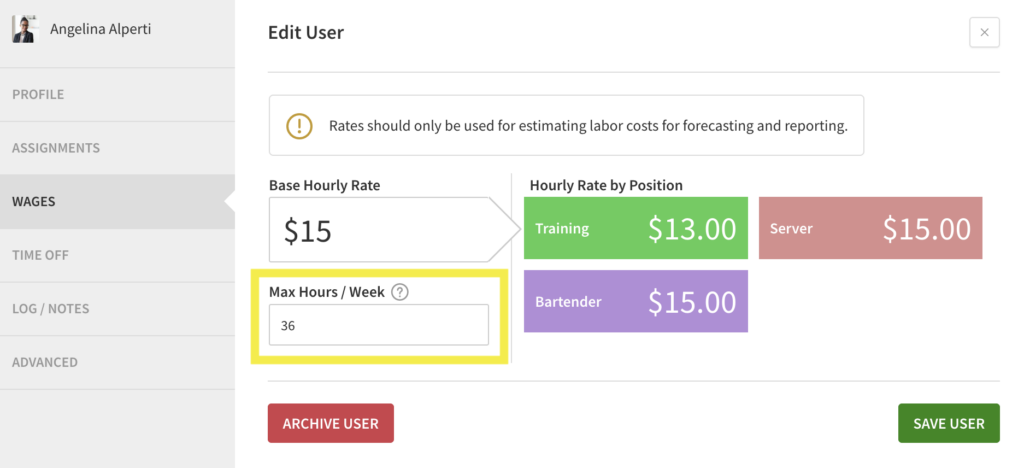
- Click Save User to finish.
View Max Hours on the Scheduler
- When max hours have been entered, you will see 2 numbers under the name of each user on the Schedule.
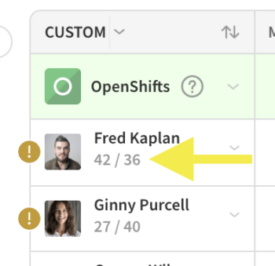
- The left number indicates their current total scheduled hours
- The right number indicates their max hours threshold
- An icon will appear by their name if there is a scheduling concern such as being over max hours.
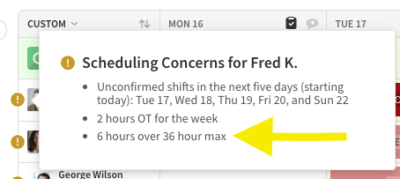 **Those on legacy plans will instead see the numbers under the employee name highlighted in red to indicate the max hours overage.