
Overview
Curious about how much time off you have accrued? This article walks you through checking your time off balance.
Check out Edit Time Off Balances for Users if you are an admin or manager and need to make adjustments to a time off balance.
Considerations
- You must have attendance to use time off accruals.
- Your workplace must be set up to with a time off accrual policy.
Check your balance on a Computer
Hover over , then select Request Time Off.
- Select the time off type you want to check the balance for.
- Your time off balance loads in the modal.
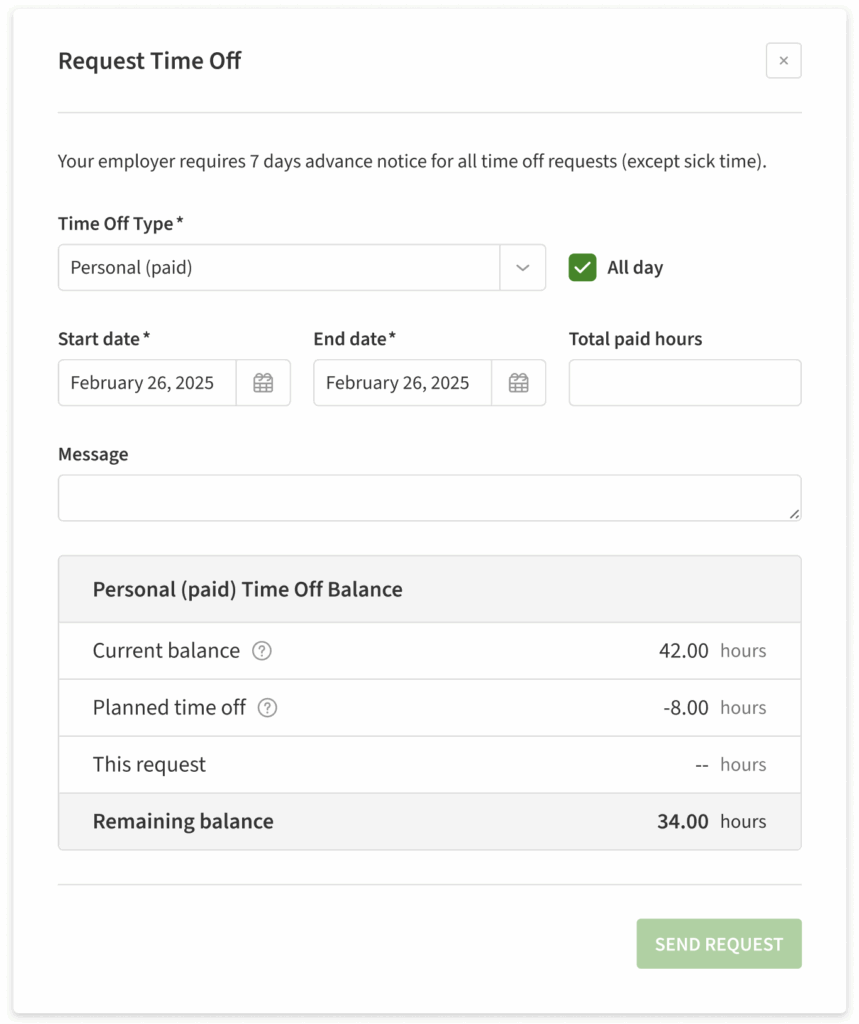
- Clicking on the icon will reveal definitions of that balance:

Checking your balance on iOS
- From the When I Work Staff Scheduling app, tap the Time Off Requests dashboard card.
- In the top-right corner of the screen, tap
- Set up the time off request
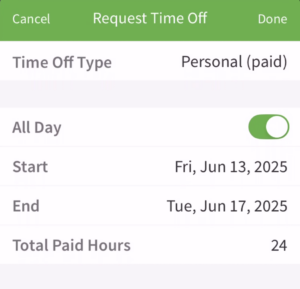
- If the type of time off chosen has a balance associated with it, you will see the balance card at the bottom of the request.
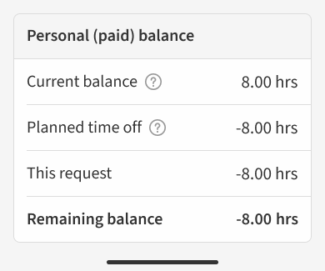
- Tapping on the icon will display definitions of that balance:
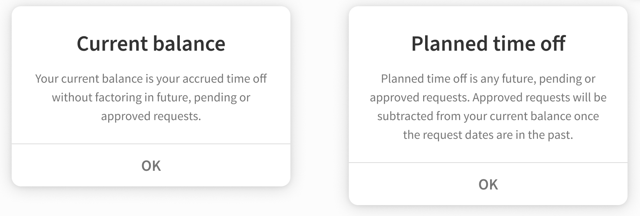
Checking your balance on Android
- From the When I Work Scheduling app, tap the Time Off Requests dashboard card.
- In the top-right corner of the screen, tap Plus button.
- Set up the time off request details.
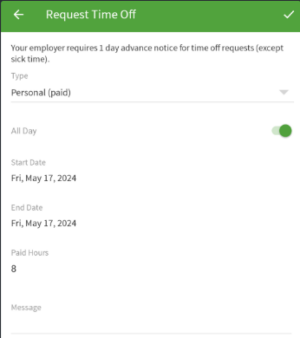
- If the type of time off chosen has a balance associated with it, you will see the balance card at the bottom of the request. This will look similar to the iOS screenshot above!
Max balance display
When the current balance has reached max accrual, a sentence appears and the definition is updated: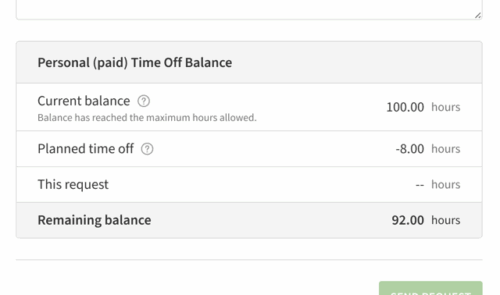
This appears the same on all platforms!